
Last updated: October 2026 · By Jena Bruis, IPTVSup content team
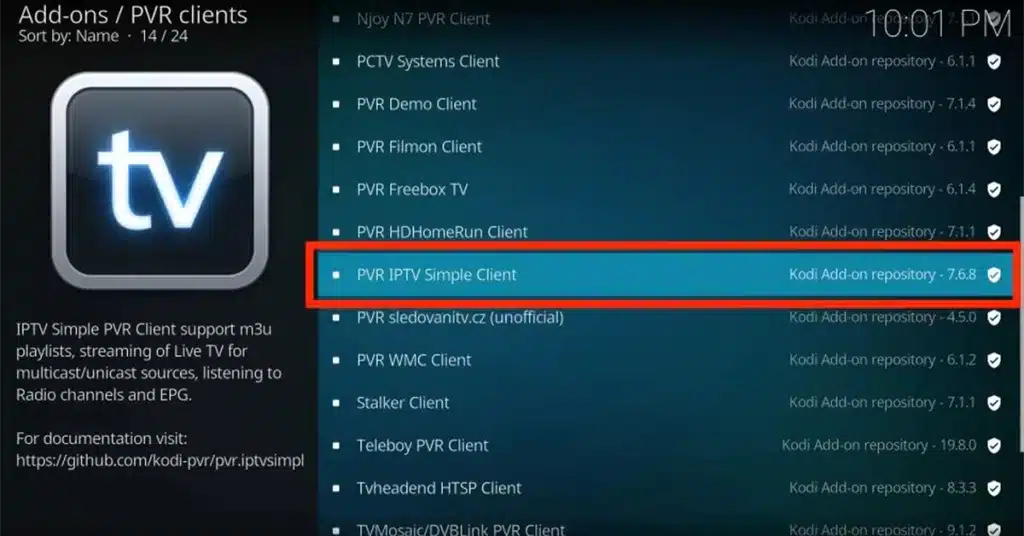
Kodi can play IPTV through its official, free PVR IPTV Simple Client add-on. Once it’s set up, your channels appear in Kodi’s TV section with a full programme guide. This guide shows how to install the add-on, add your IPTV playlist and TV guide, and fix the most common problems, with screenshots for every step.

You need:
PVR IPTV Simple Client is maintained by the Kodi team and installed from Kodi’s own repository, so no third-party sources are needed.
Is Kodi the best choice? Kodi is powerful and works on almost any device, but setup takes longer than dedicated IPTV apps. On Android TV or Fire TV, TiviMate is quicker to set up.


Only have an Xtream Codes login? PVR IPTV Simple Client uses M3U links. Most providers can give you an M3U link for the same account. Ask your provider, or IPTVSup support, for it.
Close Kodi completely and open it again. The add-on loads your channels automatically. The first load can take a few minutes for large playlists.


When it’s finished, select TV from Kodi’s main menu to see your channels, and Guide for the programme guide.
No TV option in the main menu. Go to Settings → Interface → Skin → Configure skin → Main menu items and turn on TV.
“PVR IPTV Simple Client: Unable to load channels”. The M3U link is wrong, expired, or has a typo. Re-enter it, then restart Kodi.
Guide is empty. Check the XMLTV URL in the EPG tab, then go to Settings → PVR & Live TV → Guide and select Clear data to reload it.
New channels don’t appear. Go to Settings → PVR & Live TV → General → Clear data, then restart Kodi to reload the playlist.
Buffering. Use a wired connection if possible and close other apps. See our buffering guide for more fixes.
Is PVR IPTV Simple Client free and safe?
Yes. It’s an official add-on from the Kodi team, installed from Kodi’s own repository.
Does Kodi come with IPTV channels?
No. Kodi is a media player. You need an IPTV subscription and its playlist link to watch channels.
Can I use Xtream Codes on Kodi?
Not directly with PVR IPTV Simple Client. It uses M3U links, which most providers offer alongside Xtream Codes.
Which devices can run Kodi?
Windows, Mac, Linux, Android phones, Android TV boxes, NVIDIA Shield and Fire TV. On iPhone and Apple TV, Kodi isn’t in the App Store, so IPTV Smarters Pro is the easier choice. See our setup guides.
Can I get help setting it up?
Yes. Contact our support team and we’ll walk you through it, or see our plans.
About the author: Jena Bruis is part of the IPTVSup content team and writes our setup guides and explainers. Questions about this guide? Contact us.
Ready to start streaming?
25,000+ channels · HD & 4K · All devices · From $5/mo
View Plans →